KpsLauncher – Task Launcher for Webcrawling
The Launcher is a small tool for running tasks (commands or URLs) manually, on a schedule (cron), or chained together (task dependencies). It is oriented toward web crawling, allowing multiple tasks to run in a coordinated way. For example, if you create a PHP script for web crawling, you can execute it either from the command line or through a URL using a web server such as Apache

1. Main screen
When you open the program you will see three main areas:
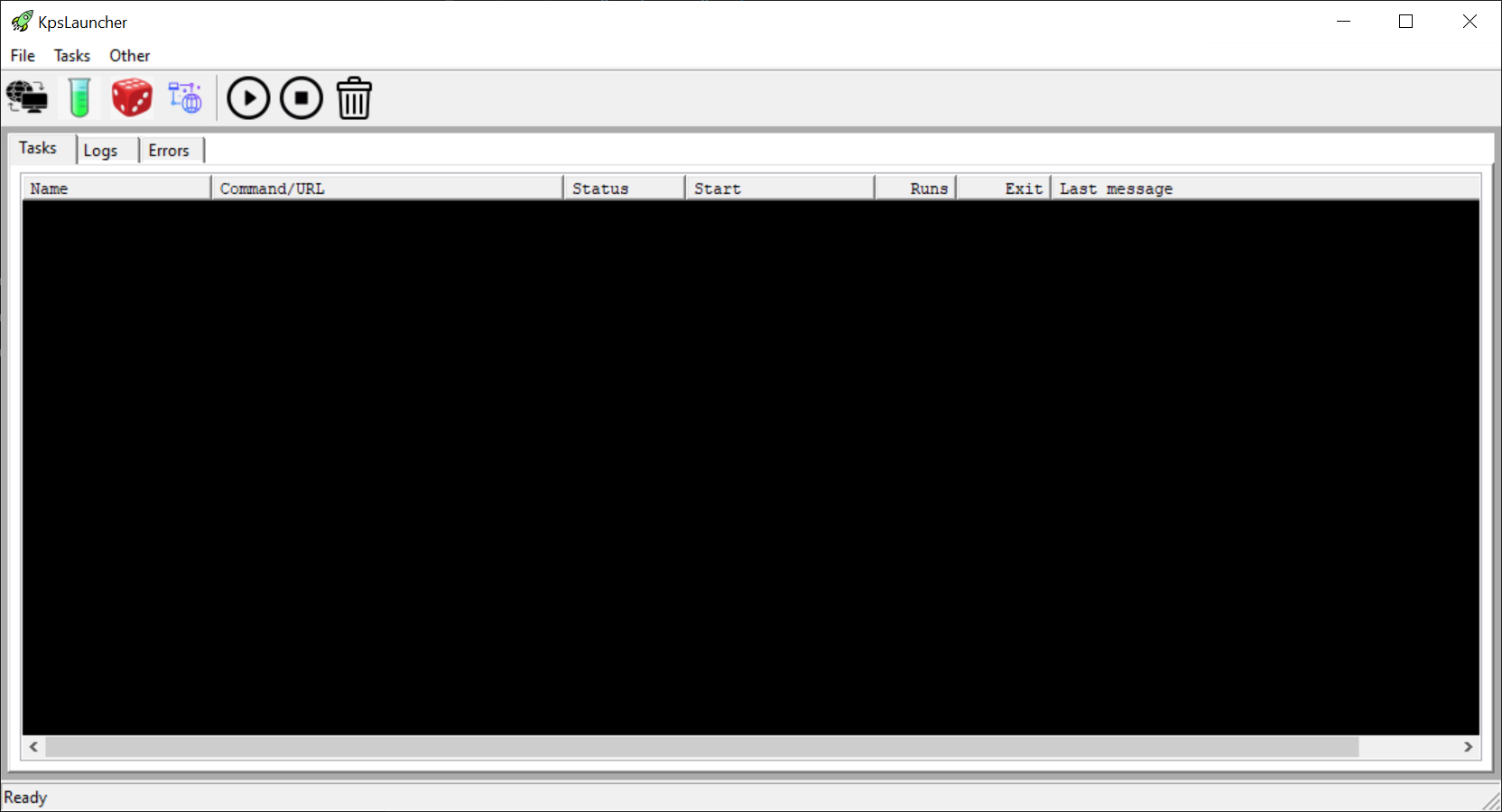
- Toolbar (top): configurable buttons to launch tasks.
- “Tasks” tab: list of all executions (running and historical).
- “Logs” and “Errors” tabs:
- Logs: normal output of tasks that have logging enabled.
- Errors: only shows executions that finished with an error (exitCode ≠ 0) and also saves them into
errors.log.
- Status bar (bottom): summary of total tasks, running tasks and errors.
2. Creating and editing tasks
2.1 Opening the task editor
- In the top menu, go to “Tasks > Task editor”.
- A window will open where you can:
- Create new task.
- Modify existing ones.
- Save the configuration to
tasks.json.
2.2 Basic fields of a task
- Name: text shown on the toolbar.
- Icon:
- Path to a PNG file. If it is under the program folder, it will be stored as a relative path.
- Examples:
assets\ping.png,assets\test.png.
- Color: color associated with the task and its logs.
- Logging:
- If enabled, the task output is sent to the Logs tab.
- Log (logValue): numeric or text value that you can use as a macro (for example, to send a debug level to your scripts).
- Max instances:
- Maximum number of simultaneous executions of that task.
- On finish:
- stop: finishes and remains in the list.
- delete: when finished, the task is removed from the list.
- restart: when finished, it is executed again after the delay set in restart delay.
- Restart delay: delay in milliseconds before relaunching tasks with
onfinish = restart.
2.3 Task steps
Each task can have one or more steps that are executed in order:
- In the steps tab, add one or more run entries:
- type = cmd: executes a system command (e.g.
ping). - type = url: performs an HTTP request using
libcurl.
- type = cmd: executes a system command (e.g.
- Each step has:
- run: base command or URL.
- params: list of parameters (for
cmdthey are separated with spaces, forurlthey are concatenated as-is).
- If any step fails (exitCode ≠ 0), the sequence stops and the task ends in Failed state.
2.4 Available macros
You can use several macros in run and params:
[%instance%]: instance number (1..N) of the task.[%log%]: value of the log field configured in the task.[%maxinstances%]: maximum instances of the task.[%task.<name>.<inst>.exitCode%]:- Inserts the last known exitCode of the task with that name and that instance number.
- Example:
[%task.ping.1.exitCode%].
2.5 Scheduling (cron)
In the Cron tab you can define when a task is launched automatically:
- second, minute, hour, dmonth, month, dow.
- Cron-like format: numbers, lists (
1,5,10), ranges (1-5) or*(any). - If the cron is invalid, the button is automatically disabled.
2.6 Task dependencies
In the Dependencies tab you can define which tasks must have finished successfully before executing another:
- Dependency list: names of other tasks.
- Mode:
- AND (all): all must be satisfied (all must have exitCode 0 at least once).
- OR (any): it is enough if one is satisfied.
- If task A depends on B, when B finishes successfully the dependencies are checked and, if they are satisfied, A is launched automatically.
3. Running tasks
3.1 From the toolbar
- Click the corresponding button on the toolbar.
- If there is a free instance slot, a task is created (or reused) and its execution thread is started.
3.2 From the task list
- Select a task in the Tasks tab.
- Use the Run toolbar button (”play” icon) to re-run that entry.
- Use Cancel to request cancellation of the running task.
- Use Remove to delete the task from the table (does not affect the original task).
4. Logs, errors and debugging
4.1 “Logs” tab
- Shows real-time output of tasks with logging enabled.
- Each line includes date/time, task name and instance.
4.2 “Errors” tab and errors.log file
- When a task finishes with exitCode ≠ 0:
- A block is added to the Errors panel.
- The same block is written to
errors.log(in the EXE folder).
- The block includes:
- Date and time of the execution.
- Task name and instance.
- Returned exitCode.
- Captured output of that execution.
4.3 Task context menu (debug/log)
In the Tasks tab, right-click on one or more selected tasks:
- Enable debug (logging): enables logging only for those tasks (does not change the JSON).
- Disable debug (logging): disables logging for those tasks.
- Change debug level (logValue):
- Allows you to set a new
logvalue temporarily (for example4,10, etc.).
- Allows you to set a new
These changes are temporary (only for already created tasks); they are not stored in tasks.json.
5. Notifications and auto-start
- Error notifications:
- In the Other > Error notifications menu you can enable or disable alerts.
- If enabled, when a task fails a notification is shown in the system tray.
- Start with the computer (Windows):
- In Other > Start with the computer you can add or remove the Launcher from Windows startup.
6. Minimize to tray
- When you close the window (close button), by default the application is hidden in the system tray.
- From the tray icon you can:
- Restore the window.
- Close the application completely.
7. Example JSON configuration file
Task configuration is stored in the tasks.json file located in the same folder
as the executable. Normally you do not need to edit this file by hand:
the application includes a built-in Task editor (menu
Tasks > Task editor) which generates and updates the JSON for you.
A simplified example of tasks.json could be:
{
  "tasks": [
    {
      "name": "ping",
      "icon": "assets\ping.png",
      "color": "#00AAAA",
      "logging": true,
      "log": "4",
      "maxinstances": 1,
      "onfinish": "stop",
      "restartdelay": 0,
      "run": [
        {
          "type": "cmd",
          "run": "ping 1.1.1.1",
          "params": ["-n 10"]
        },
        {
          "type": "cmd",
          "run": "ping 8.8.8.8",
          "params": ["-n 10"]
        }
      ]
    }
  ]
}
Meaning of the most important fields:
tasks: list of all defined tasks.name: name shown in the toolbar.icon: path to the PNG icon. If it is under the program folder it is usually a relative path (for exampleassets\ping.png).color: color associated with the task and its logs, in#RRGGBBformat.logging: iftrue, the task output is sent to the Logs tab.log: free value (text or number) that you can reuse in macros like[%log%].maxinstances: maximum number of simultaneous executions for this task.onfinish:"stop": finishes and the task remains in the list."delete": when finished, the entry is removed from the list."restart": when finished, the task is relaunched after the delay set inrestartdelay.
restartdelay: delay in milliseconds before relaunching a task withonfinish = "restart".run: list of steps executed in order:type:"cmd"for system commands,"url"for HTTP requests.run: base command or URL.params: additional parameters (forcmdthey are separated with spaces, forurlthey are concatenated as-is).
tasks.json manually,
the recommended way to work is always through the built-in Task editor.
When you click “Save”, the editor generates or updates this file automatically.